Verifying the rollout
Check the whole chain on a test device: what to expect on the device and in the console, and what to do if it differs.
Verifying the rollout
Go through the whole chain on the test device, signed in with the work account of a test user without admin rights. For more detail on a particular step, use the checks for that step above.
Sync the device
As in step 1: Settings → Accounts → Access work or school → the connected work account → Info → Sync. Or restart the device.
Check the policy
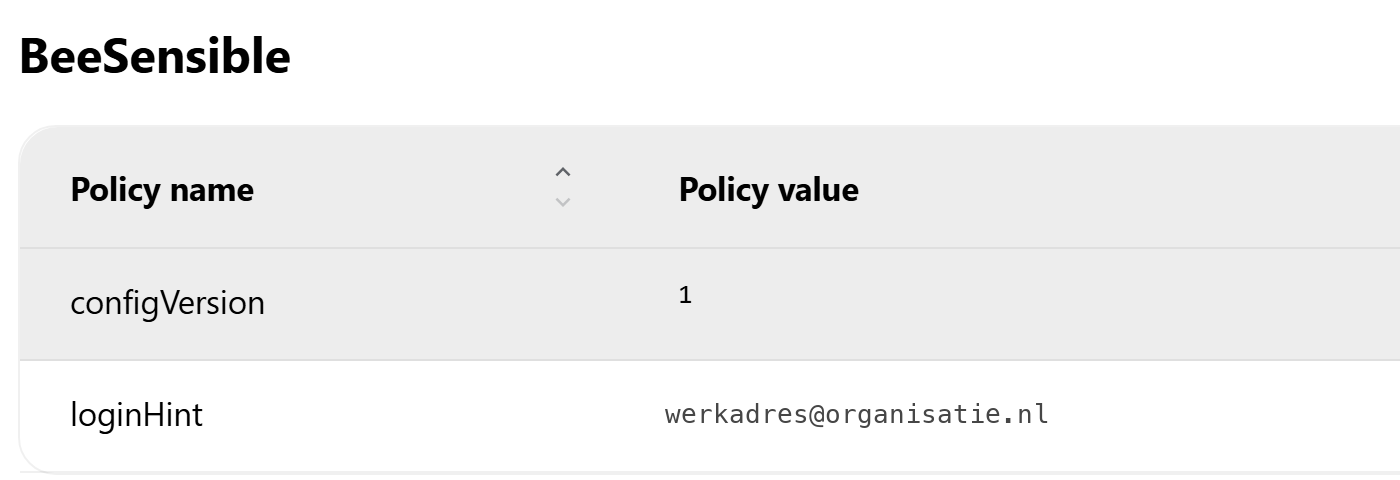
Open chrome://policy or edge://policy and check two things: the BeeSensible entry is under ExtensionInstallForcelist, and the BeeSensible section shows configVersion 1 and loginHint with the work address, both with source Platform and status OK.
Check the extension
The BeeSensible extension is in the browser and cannot be removed. Check at chrome://extensions or edge://extensions that the version is at least the one given in Automatic Microsoft sign-in.
Check the sign-in
Open a site where BeeSensible works. Expected: the extension recognises the work account and starts the sign-in automatically, with no address to type and no account picker. In Chrome this is silent once CloudAPAuthEnabled is set on the device; in Edge a Microsoft window may appear. Note whatever still appears, for example two-factor authentication.
Check the console
The test member appears in the rollout console under Observed usage; on the Members page the sign-in shows as Managed.
Check a second user
Sign in as a second standard user on the same device and check that this user has their own sign-in hint and sees nothing belonging to the first user.
Check the desktop app
After the next Windows sign-in, the BeeSensible icon is in the system tray and the app is signed in with the work account, or asks you to sign in once.
Check private windows
Only if you have set this up: open an InPrivate or Incognito window and check the behaviour described under Private windows.
Troubleshooting
The detailed troubleshooting sits with the step where the problem occurs; this section points you to it.
Nothing arrives on the device
Force a sync as in step 1, and bear in mind that scripts and configuration profiles each arrive on their own schedule: the extension being there tells you nothing about the script.
The sign-in script does nothing
See the troubleshooting under step 1: Entra joined, work account sign-in, loaded profile, verified domain and the logs on the device.
The sign-in is not silent in Chrome
See Silent sign-in in Chrome under Optional hardening.
The extension version lags behind
Extension updates flow through the browser store and cannot be pinned; see the callout Updates flow through the store in step 2 and the Edge troubleshooting under Automatic Microsoft sign-in.
The desktop app shows Pending or Failed
See the troubleshooting under the Verify step in Deploying the desktop app.