Install the extension automatically
Force-install for Chrome and Edge on Windows and macOS, automatic Microsoft sign-in and the optional hardening.
Install the extension automatically
Windows
The forced installation works through the ExtensionInstallForcelist browser policy: the extension appears in the browser automatically and cannot be removed.
Create a configuration profile
Intune: Devices → Configuration → Create → New policy → Windows 10 and later → Settings catalog.
Add the forcelist entry for each browser
Search the Settings catalog for ExtensionInstallForcelist, under Google Chrome and under Microsoft Edge. Each time, pick the device variant of the setting and paste the value for that browser:
cnlogmngeghlgbncagnoodfjkbaknnbo;https://clients2.google.com/service/update2/crxplnhmaecddjmliagaedlgagopdcahlgb;https://edge.microsoft.com/extensionwebstorebase/v1/crxAssign to your target group
Assign it to the same group as in step 1.
macOS
For macOS, the console generates a configuration profile (.mobileconfig) that handles the forced installation of the extension for the browsers in your deployment profile. Prerequisites: the Mac is enrolled in Intune and the browser is already installed; the profile does not install a browser.
Download the profile
Upload it as a custom profile
Intune: Devices → macOS → Configuration → New policy → Templates → Custom.
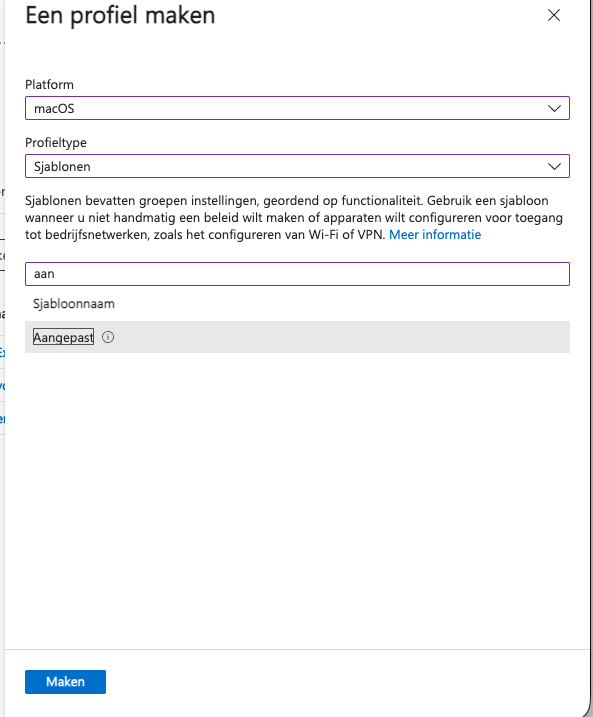
Pick the device channel and assign
For the deployment channel, choose the device channel, upload the profile and assign it to your target group. You cannot change the channel after saving; if you pick the wrong one, create a new profile.
Automatic Microsoft sign-in
With steps 1 and 2 in place, the extension recognises the work account: the employee does not type an address or pick an account. Whether a Microsoft screen still appears depends on the browser.
This requires a recent version of the extension. Since5.5.14 the extension recognises the work account from the sign-in script; Since5.5.17 it also tries to complete the sign-in in Edge without an account picker. Check the version at chrome://extensions or edge://extensions. When a new version arrives is up to the store; an organisation cannot pin the store version.
Chrome only passes the Windows sign-in on to Microsoft with the CloudAPAuthEnabled policy; see Silent sign-in in Chrome under Optional hardening. With that policy the sign-in completes without a password or confirmation. Tested31 August 2026
Without that policy, the sign-in still works, but Microsoft asks once for confirmation or a password. Not yet validated
On an Entra-joined device, Edge signs in to Microsoft web apps silently by default; no policy is needed for that.
For the BeeSensible sign-in in Edge, that silent sign-in has not been confirmed: expect a Microsoft window, and note exactly what employees see while you test. Do not set extra Edge policies to work around this; what matters here is BeeSensible's sign-in flow, not the Edge configuration. Not yet validated
After a successful sign-in, BeeSensible keeps using the existing session for as long as it is valid.
Microsoft still asks to pick an account
There are four possible causes; check them in this order:
- The hint is missing or unusable. Run the registry commands from step 1. If there is no
loginHint, if it literally says{{UserPrincipalName}}or if the value has no @ sign, the extension ignores it; the console counts such a client under Managed configuration not filled in. - The extension is older than the version above. Check
chrome://extensionsoredge://extensionsand wait for the store. - The domain of the work address is not verified in BeeSensible.
- No identity provider is connected, so there is no business sign-in route and BeeSensible shows the regular sign-in screen. See Identity.
Edge still shows the old account picker
First check the extension version at edge://extensions. Microsoft Edge Add-ons delivers updates later than the Chrome Web Store; as long as the version is below the minimum above, the extension behaves like a standard installation that does not recognise the work account. The only option is to wait; policy cannot force a version.
Optional hardening
Both measures below are optional: the extension and the sign-in work without them. Optional
Silent sign-in in Chrome (CloudAPAuthEnabled)
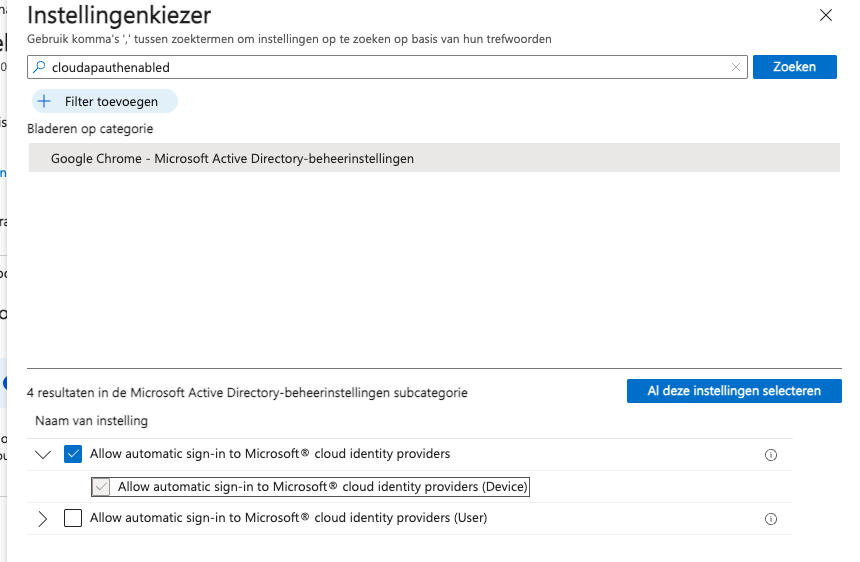
Chrome only passes the Windows sign-in on to Microsoft with this policy (Chrome 111 or newer):
CloudAPAuthEnabledSearch the Settings catalog for the name above; that is quicker than searching for the full display name, "Allow automatic sign-in to Microsoft cloud identity providers". Pick the device variant, set it to Enabled and assign it to your target group. By design, the policy applies to the whole device rather than to a browser profile, and it does not work in Incognito windows.
With this policy, Chrome shares device and account information with Microsoft during Microsoft sign-ins, the same exchange Edge performs by default.
The sign-in is not automatic in Chrome
Check in chrome://policy that CloudAPAuthEnabled is true; if it is not, force a sync as in step 1. Then restart Chrome completely (close all windows).
Private windows (Incognito and InPrivate)
Forced installation does not automatically apply in private windows: whether an extension may run there is a permission users set themselves, and by design, browser policy cannot switch it on. Without an extra measure, a private window is a window without BeeSensible.
Chrome on Windows and macOS has no policy that forces an extension to run in Incognito; the equivalent policy only exists on ChromeOS. So the choice is:
- disable Incognito browser-wide with
IncognitoModeAvailabilityset to 1 (takes effect after a browser restart), or - accept the gap and measure it.
From Edge 139 onwards, InPrivate can be made dependent on the extension: with the MandatoryExtensionsForInPrivateNavigation policy, InPrivate only works once the user has allowed BeeSensible there. Until then, InPrivate will not open any page.
Set the policy through the Settings catalog, with the Edge extension ID as the value:
plnhmaecddjmliagaedlgagopdcahlgbSince5.5.17 the extension reports at sign-in whether it may run in private windows; the rollout console counts how many clients are covered.
If you withdraw the forced installation later, remove these policies as well; see Rolling back.